 Adding
Symbols
(Special Characters)
Adding
Symbols
(Special Characters)
Adding
Symbols
(Special Characters)
Accenter provides the capability for you to choose which special characters you can insert in your documents. However, for the sake of this tutorial, the discussion will center around the 'default' special characters. Be sure to read the sections on Customizing Symbol Groups and Customizing Symbols to learn about how to add your own special characters.
Inserting accented letters
In order to insert an accented letter, press the ALT key, and while holding it down, press the appropriate letter (for example, if you want an accented 'e', press ALT-e.) The following dialog will appear.
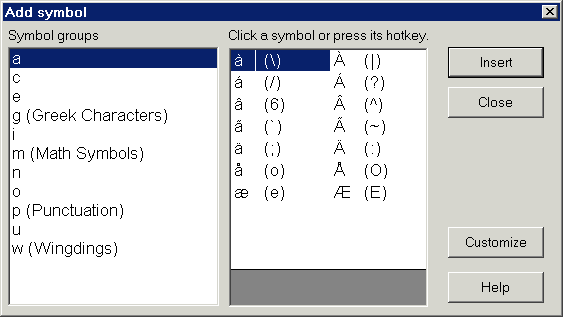
Note that the letter 'e' is selected on the left. On the right are eight different versions of an accented 'e'. Next to each of these accented letters is a shortcut or 'hotkey' for each. You can either click the character you want, press the hotkey for that character, or use the arrow keys on the keyboard to select the character. Thus, to insert the character 'è', you would press ALT-e, followed by the back-slash.
The same method works for each of the symbol groups listed on the left. You can press ALT-n, followed by the tilde, to insert the 'ñ' character.
Also, if you forget which key combinations open this dialog box, you can press the key combination for a group you do remember, and then select the appropriate group from the list.
HTML Help file Copyright © 2001 by Virtu Software