 Customizing
the
Symbols
Customizing
the
Symbols
Customizing
the
Symbols
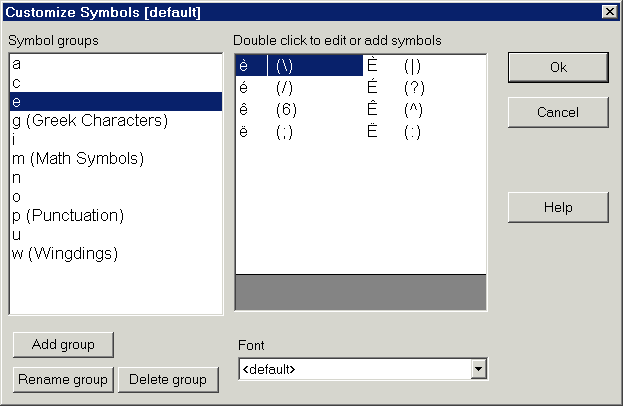
Once you have set up the symbol groups you want, you can customize the symbols within the group. This is done from the same dialog box you used to customize the groups.
Adding a symbol
Each group can contain up to 20 different symbols. These are shown (along with their hotkeys) in the list on the right. To add a new symbol, double-click a blank space in the right-hand list. The following dialog will appear:
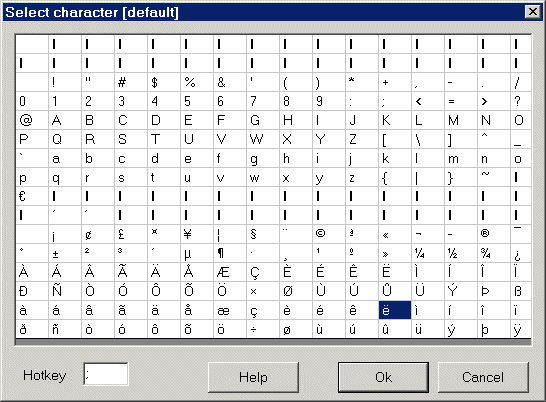
Click on any character in the grid to select it. Then type a 'hotkey' in the textbox at the bottom. This is the key you will use to insert the character.
NOTE: You don't have to select a hotkey, but if you don't, you will have to select they character using the mouse, which defeats the ease of use provided by Accenter.
Editing a symbol
You may want to change either the symbol or the hotkey for an existing symbol in the group. (For example, you might want to use the apostrophe instead of the backslash to select characters like 'אטלעש'). To do this, double click on the symbol you want to change. The dialog pictured above will appear. Simply click the new symbol, or type the new hotkey, and press 'Ok'.
HTML Help file Copyright © 2001 by Virtu Software